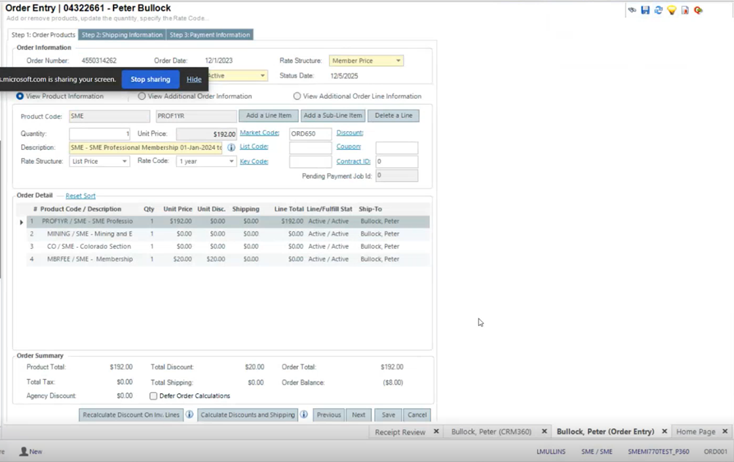

Receipt Transfer

Mar 11, 2026
 81
81
How to Transfer a Receipt to a Different Order
Follow the steps below to move a receipt from one order to another within the association management system.
1️ Open the User Profile
- Search for and select the appropriate user.
- Open their Profile page.
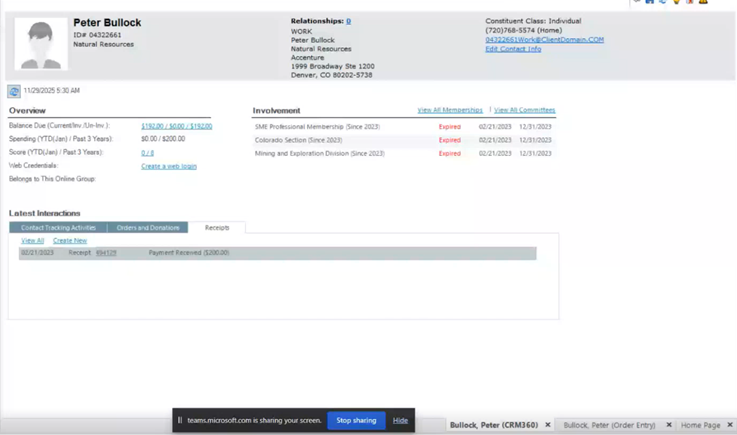
2️ View All Receipts
- Click the Receipts tab on the Profile page.
- Locate the receipt you need to transfer.
- Select the Receipt ID to open its details.
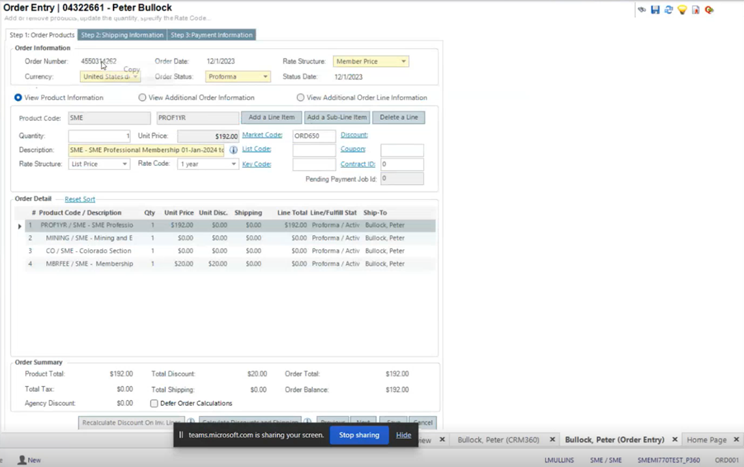
3️ Confirm the New Order Number
- Before transferring, identify the correct destination order number.
- You can find this by checking the Orders tab on the profile and opening the correct Order Summary page.
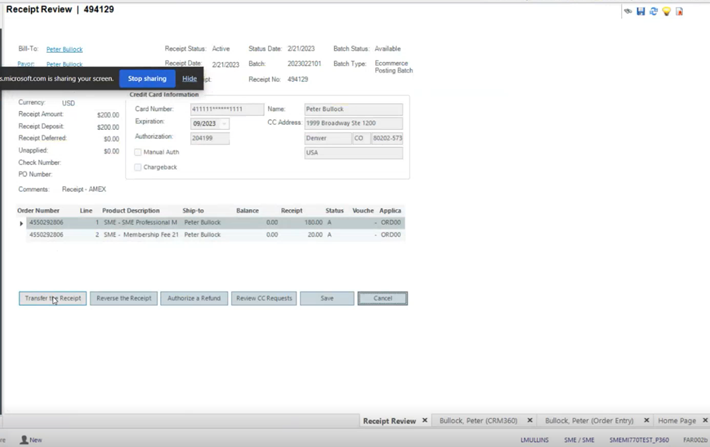
4️ Initiate the Transfer
- On the Receipt Review page, scroll to the bottom-left corner.
- Click Transfer Receipt.
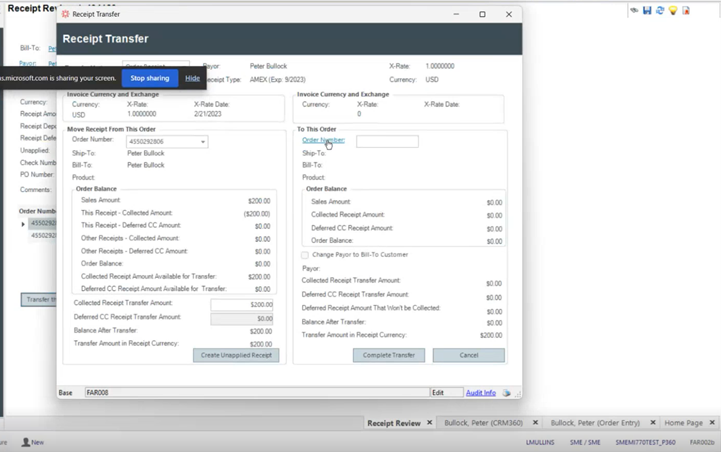
5️ Select the Destination Order
- On the Receipt Transfer page:
- 1Enter or search the order number for the new order.
- 1
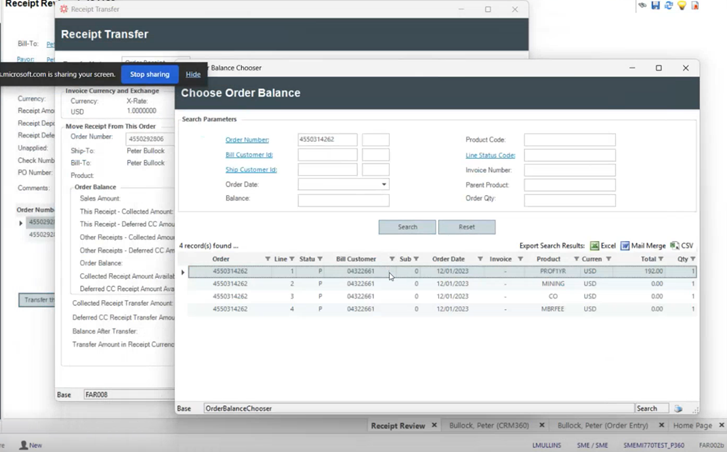
- 1Select the correct line item within that order.
- 1
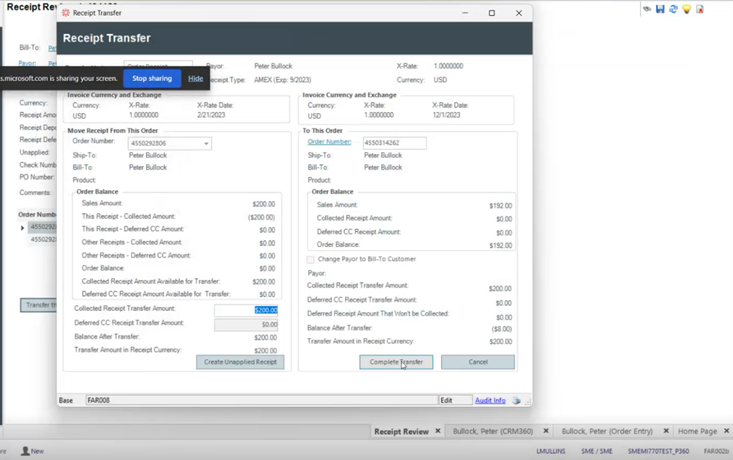
- 1Click Complete Transfer to finish.
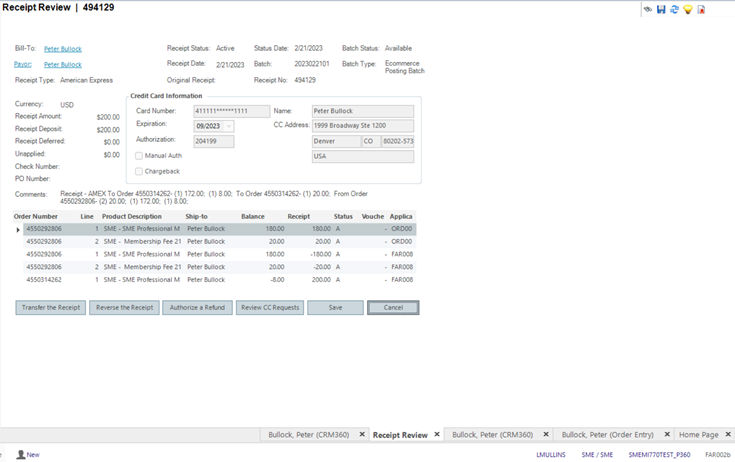
6️ Validate the Transfer
- Confirm the transferred receipt appears under Payments/Receipts.
- Navigate back to the new Order Summary page.
- Refresh the page if needed.
- Review the order status and verify the balance is correct.